



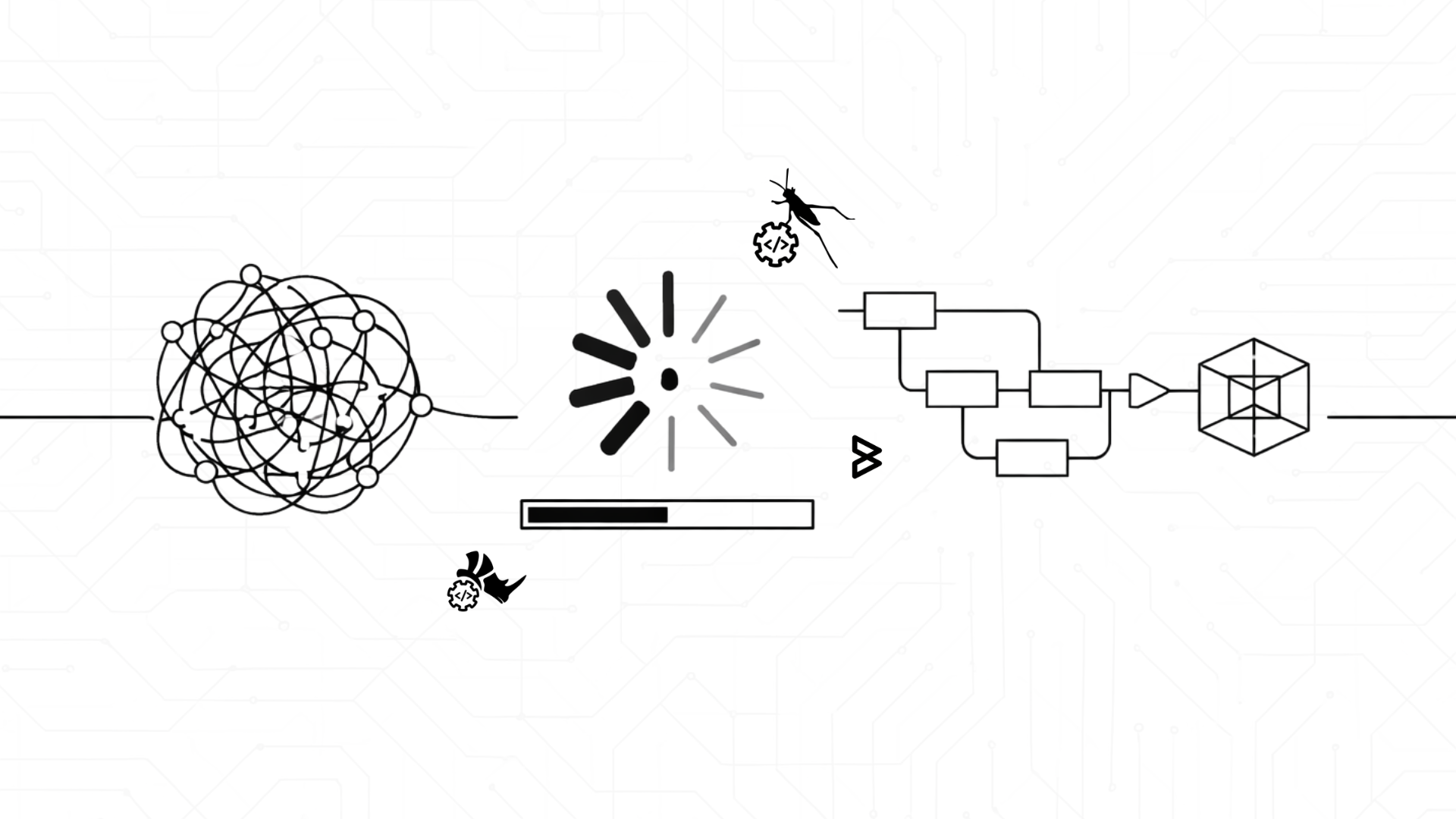
That “Spinning Wheel” Isn’t a Badge of Honor: How to Make Heavy Grasshopper Definitions Run Like a Pro
We’ve all been there. You connect a single wire, and suddenly, the “spinning wheel of death” appears. Your Rhino freezes, your fans start whirring like a jet engine, and you have enough time to go make a coffee before the screen unfreezes.
It feels like the price of complexity is a slow workflow, but it doesn’t have to be. Usually, Grasshopper isn’t slow because your computer is “bad”, it’s slow because of how the data is moving behind the scenes. If your script feels like it’s wading through shoulder-deep mud, it’s time to stop building and start tuning. Let’s look at how to turn a lagging definition into a high-performance engine.
The Silent Killers: Why Your Script is Dragging

Before we fix it, we have to find the “drag.” Most slowdowns come from three main culprits that act as invisible anchors on your CPU.
- The “Data Explosion” (Invisible Bloat) This is the #1 reason Grasshopper crashes. You think you’re calculating 10 points on a curve, but a misplaced “Graft” or a messy Data Tree has accidentally told Grasshopper to calculate those 10 points against 1,000 other surfaces. Suddenly, a simple task becomes 10,000 operations. If your wires look like thick double lines (indicating complex trees), you’re likely carrying way more data than you actually need.
- Geometry Weight: Breps vs. Meshes Computers hate calculating BREPs (the smooth, mathematical solids Rhino loves). Intersecting two complex Breps requires intense calculus. On the other hand, a Mesh is just a collection of flat triangles. For things like shadow studies, floor area calculations, or visual checks, switching to Meshes can make your script feel 10x lighter without changing the design.
- The “Red” Components Not all components are created equal. Some, like Solid Difference, Region Boolean, or Voronoi 3D, are “heavy hitters” by nature. If you have 50 of these lined up in a row, your script will never be fast. The trick isn’t to avoid them, but to use them only at the very end of the chain or to use data dams.
Real-World Insights: What the Data Says
Optimization Technique | Before (Compute Time) | After (Compute Time) | Improvement |
Data Tree Cleanup | 12.4 seconds | 0.8 seconds | ~93% faster |
Switching Brep to Mesh | 45.2 seconds | 5.1 seconds | ~88% faster |
Internalizing Static Data | 8.5 seconds | 0.2 seconds | Near Instant |
When we audit scripts, we often find that 90% of the lag comes from just 5% of the components. Here is how the numbers play out when you start trimming the fat:
- Data Tree Cleanup: In a recent test, a script with redundant “Grafts” and unsimplified paths took 12.4 seconds to solve every time a slider moved. By simply flattening the inputs and cleaning the tree structure, the compute time dropped to 0.8 seconds. That is a 93% speed increase gained just by managing data, not changing a single piece of geometry.
- The Mesh Advantage: Calculating a complex shadow study or building massing using solid Breps took 45.2 seconds. By converting the geometry to low-resolution Meshes for the calculation and only switching back to Breps for the final bake, the time fell to 5.1 seconds.
- The Power of Internalizing: For a masterplan script, re-calculating the site terrain from a heavy file every time a building moved added 8.5 seconds of lag. By Internalizing the site geometry (saving it inside the GH file), that lag was reduced to 0.2 seconds, essentially making the update instant.
- The “Display” Tax: Surprisingly, just turning off the “Preview” for heavy components can save significant time. In one test, hiding the preview of 5,000 complex surfaces reduced the “UI Lag” from 2.1 seconds to 0.3 seconds.
Pro-Level Insights for a Snappy Canvas
If you want to move from a beginner to a power user, you need to change how you build. Here are the deep-cut insights for high-performance scripting:
- The Profiler is Your Best Friend: Go to Display > Canvas Widgets > Profiler. This puts a tiny timestamp under every component. It tells you exactly who the “slowest person in the room” is. Don’t guess where the lag is, let the Profiler show you.
- The “Lock” Strategy: If you know you’re about to make five big changes, hit the Lock icon (top right) or press Ctrl + Alt + L. Make your changes while the solver is “asleep,” then unlock it once. This prevents Grasshopper from trying to re-calculate five times when you only need the final result.
- Stream Filter Logic: Use the Stream Filter or Stream Gate to “turn off” parts of your script you aren’t working on. If you’re focusing on the roof, why is the basement still calculating?
- Culling Before Calculating: Instead of running a heavy operation on 1,000 items and then picking the 10 you want, pick the 10 first. Use Cull Pattern or Sift as early as possible in the definition to keep the “data stream” thin.
- Python/C# for Loops: If you find yourself copying and pasting the same 10 components over and over to create a “loop,” you’re killing your performance. A simple 5-line script in a C# or Python components can often replace 50 Grasshopper components and run in a fraction of the time.
The Final Result: A Smoother Design Loop
Performance tuning isn’t just about saving seconds; it’s about staying in the “flow.” When your tools respond instantly, you can experiment more, find better forms, and actually enjoy the design process instead of fighting the software. A fast script isn’t just a technical achievement, it’s a creative unlock.
At Borgmarkkula, we believe that technical hurdles shouldn’t stand in the way of great design. We partner with teams to dismantle these bottlenecks, whether it’s by auditing messy scripts or building custom tools that handle the heavy lifting. We help your team stop waiting on progress bars and start working at the speed of their ideas.
Ready to clean up your workflow? Let’s talk about how we can make your team’s tools work as fast as you think.
Book your 30 minutes free call here:
https://calendly.com/kane-borgmarkkula/30min